skip to main |
skip to sidebar
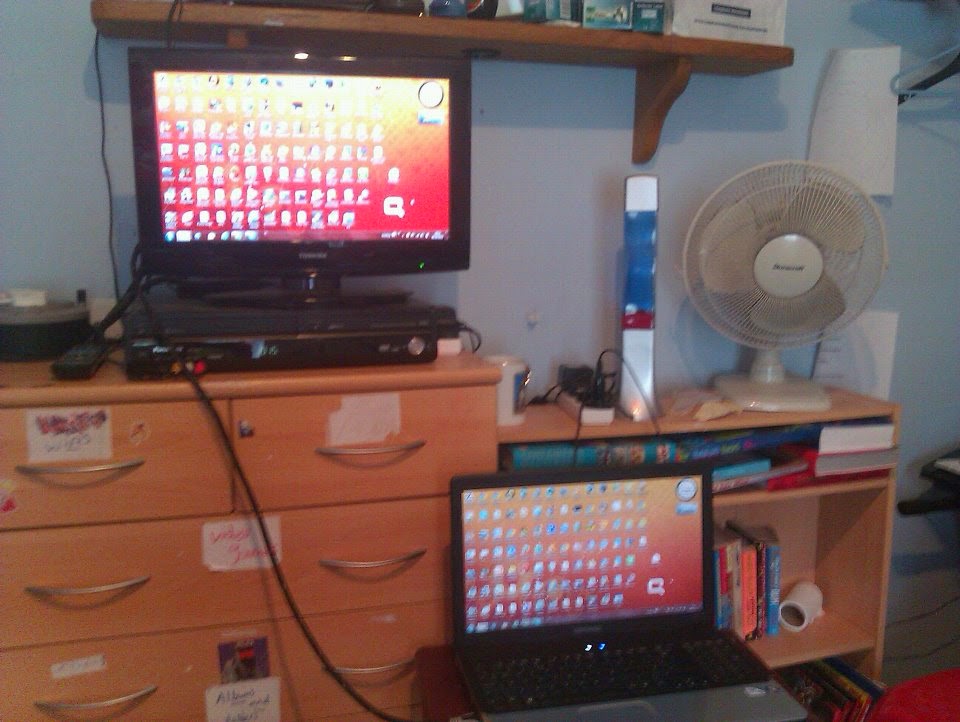 Not only do many homes now include a personal computer of some type but some professionals will often have a desktop and a laptop. Emailing files between the two can become tedious, as can saving the files to an external thumb drive before connecting it to the other computer to upload. For this reason, it is helpful to have a quick and easy way to share files between computers. It's simple to connect a desktop to a laptop by creating a LAN, or local area network.
Also See: How to Connect two Routers
How to transfer files between Laptops
How to Connect two Computers using USB
Method 1 of 2: Using Windows
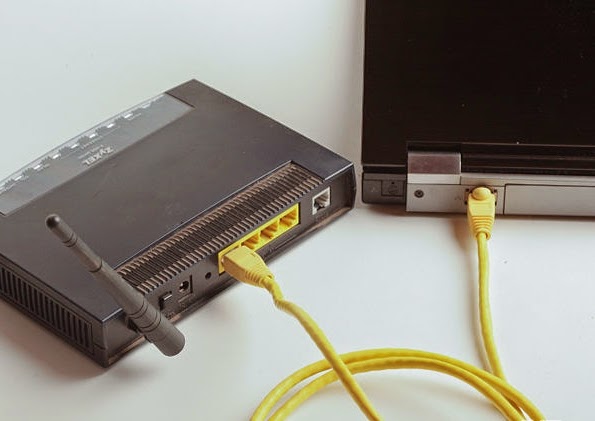
1.Plug your desktop into the modem, router or gateway that provides your Internet service access and home network.
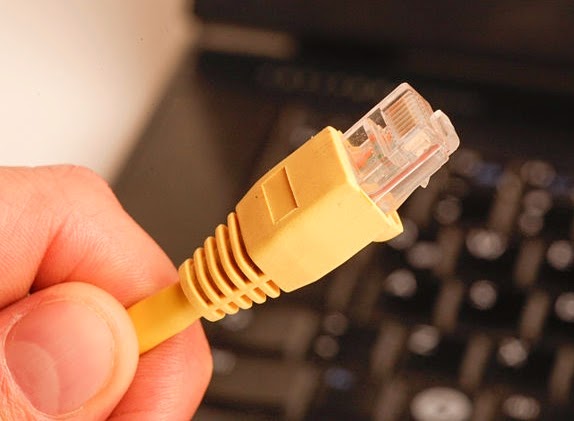
- Most modern computers will connect via Ethernet or Cat5 cable.
- You should be able to connect remotely to a wireless access point if your desktop computer is fitted with a wireless networking card.
2.Boot the desktop computer and prepare to share files residing on that system.
- On a PC, right-click the file location you want to share file access to. For example, most documents are stored under the "My Documents" hierarchy.
- Click "Share" from the drop-down menu.
- You can add existing user IDs to the list of those who may have access. If you are the only one who has a user account on your PC, you can skip this step.
- Click the Share button and wait a few moments for the process to finish. Click the Done button when it becomes available.
3.Power up your laptop and prepare those files for sharing. Follow the same procedures as above.
- Open the home Network and Sharing Center from the computer to which you want to copy or transfer files.
- The Network and Sharing Center is available from the Windows Start menu on computers using the Windows Vista and Windows 7 operating systems.
4.Browse to the files you want.
- Click the computer name that is currently housing the files.
- When prompted, enter the user name and password for your account on that PC.
5.Right-click and drag the files onto the other computer's desktop or other location. Select "copy" or "move" as appropriate from the popup menu to transfer files.
Method 2 of 2: Using a Mac
1.Connect to the modem, router or gateway on your desktop Mac, either wirelessly or via Ethernet cable.
2.Click the Apple icon, then choose "System Preferences."
3.Prepare your files for sharing.
- Choose the Sharing option from the View menu.
- Click the plus sign icon in the Shared Folders window and browse to share folders tow which you need access.
- Add each folder and designate any other users that will have access.
4.Repeat the procedure on your Mac laptop computer.
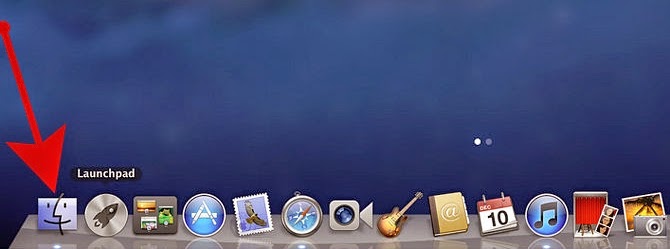 5.Access your shared files and folders from the Finder sidebar on either computer.
You can drag and drop, or copy and paste, to transfer files from one computer to the other.
Tips
- It is possible to use file sharing cross-platform between a Mac and a Windows-based PC. Share files as usual on both computers. In the Mac sharing options, also allow sharing protocol Server Message Block (SMB). Pass the files back and forth from the Mac machine.
- If Sharing with an OS X Mavericks computer by default SMB is enabled.
Warnings
- Sharing your files over an open and unprotected home network can be dangerous. Be sure to only use a security-enabled network and to password-protect all systems with shared files or folders.
Things You'll Need
- Ethernet cables or wireless networking cards
I HOPE THIS WILL HELP U PLZ.... COMMENT
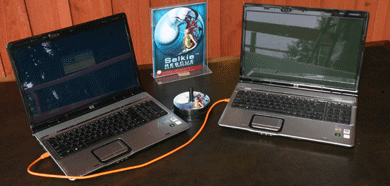 Digital data can be moved from device to device quite easily, but it requires a tool to do so. There are numerous tools that can perform a file transfer. Depending on their speed and size, these tools can range in price. If you need files moved from one laptop to another,though, you will need some kind of vehicle for the process. Use the steps below for various methods of transferring files between laptops.
Also See: How to Connect Laptop to PC
How to Connect to two Routers
How to Connect two Computers using USB
Steps
1.Use your home network, setting up the laptop with the files as a Samba server[1].
2.Send files through email.
- Open your email page and start a new email message.
- Set the receiver of the email as your own email address.
- Attach files to the email by clicking "attach file" within the email message.
- Choose a file from your folders.
- Continue to attach more files as needed and send the message when you've finished.
- Open the email on a different computer and download each attachment.
3.Connect a USB drive.
- Place a USB drive into the first laptop and open the folder that automatically appears on your desktop.
- Open the folder that contains the information you would like transferred and copy or drag that data into the USB drive folder.
- Eject the drive using your laptop's proper procedure.
- Connect the USB drive to the second computer and copy the contents to the desktop. Place the data in the proper folders once it has been transferred.
4.Use an online program.
- Visit a file storing/sharing website online. These services can be free or cost money depending on the security and space provided by the site. Most of these services allow you to upload your computer's contents onto the site's servers and download that information whenever you would like on whatever device you own. These services are often used as a way to back up computer information in case of a hard drive crash.
5.Transfer data with a Firewire cable.
- Connect your Mac laptops using a special cable for transferring data. These cables can be purchased at locations that sell Apple products.
- Follow the Firewire data transfer directions to move information from one laptop to the other.
6.Use an external hard drive.
- Buy an external hard drive with as much space as you need. External hard drives can range from less than 500 GB to as much as 5 TB.
- Connect the external hard drive to the first computer and copy the information onto the drive using a wizard.
- Remove the hard drive and connect it to the second computer to copy the contents.
7.Access FTP folders.
- Visit public FTP sites by typing ftp:// and then the site from which you are transferring data.
- Browse the FTP directory and click a file to download it. You might need to "Save Link As" to save it to your computer.
Tips
- You can find public FTP sites by doing an internet search from your favourite web search engine. This will help with Step number Two
Warnings
- You will not be able to attach every file on your computer to an email. Most email services have limits on the amount of data you can send and receive.
- Do not disconnect a USB drive without first ejecting it. Your files could become corrupted.
Things You'll Need
The two computers can only be connected with the special cable, containing the chip inside (so-called host-to-host, or networking cable).
Also See: How to Connect two Routers
How to transfer files between Laptops
How to Connect Laptop to PC
Steps
- Go to a reputable computer supplies store or online retailer and buy a special data transfer cable. Explain that you need a USB cable to connect the two computers and ask for recommendations.
- Install the drivers on both PC and plug in the cable according to the instructions.
- Follow the steps to configure the USB settings on both computers so that they can communicate with each other.
Watch Video....
Tips
- Note that this type of connection can be more difficult to set up and manage; where possible, connecting via ethernet is probably a better option.
Warnings
- Never try to connect two computers with the so-called A/A cable that has no converting electronics inside (just a plain cable with matching connectors). It connects input to input and output to output, so can easily damage the hardware.
I hope this will help you out plz.... comment
 If anyone of you has encountered seeing
this image, then you must read this article till the end.
If anyone of you has encountered seeing
this image, then you must read this article till the end.

Whenever you exceed the time beyond trial version or update a pirated version of the software using a fake key, you will be encountered with this situation.
Users addicted to IDM may start mourning whenever they see such notification, because the only method known to get rid of corrupt IDM is formatting the entire disk. IDM is a stubborn software which cannot be got rid off easily. The Registry Values stay in your system despite uninstalling the software, and prevent you from installing a new copy of the software. The problem lies in hunting those registry values.
Its a MYTH that you need to format the entire disk. You need to change the registry values and there is a program which can just do that. Follow the following steps to uninstall IDM from your System .
First of all, go to C:\Program Files (x86)\Internet Download Manager (default location), or wherever it’s installed in your system. Run the small application titled Uninstall from the folder. This will basically remove the program from your System. Your will reboot after Uninstalling.
Completely delete even the Internet Download Manager folder from the Program Files section.
Now you need to get rid of the Registry Values. Now Download the Unregister IDM program, I found this amazing little piece of program while scourging for methods to get rid of IDM. After Uninstalling, extract this program and simply double-click and run Unregister IDM.
This will get rid of the existing and previous installations of IDM completely from your System. Isn’t it a great piece of news? You did not have to format your entire disk at all for a simple but stubborn program like IDM.
[box] Giveaway : Internet Download Manger (IDM) 6.20 build 5 free Crack
Please wait for 8 seconds after clicking the above link. Then press “Skip this Ad” to start downloading. Please co-operate with the ad. It Pays for our Maintenence.
If you love this tip, please consider Sharing the tip as well. Sign Up and stay updated for more tips and tricks.
PLZZZ frnds comment if this help u out thanks


 5.Disconnect the second router from the modem.